
The TIB apps
How to use the TIB apps, step by step: TIB for fans, players and parents, and TIB Club for the people who run a club. Both use the same account as this website.
TIB
For fans, players and parents
iPhone · test phase
TIB Club
For the people who run a club
Testing with a pilot club
TIB Coach
For coaches
Coming later
Getting started
Three apps, one account
There are three TIB apps, each for one job. All of them use the same account as this website: sign in with the e-mail address you already use here, and your follows come along.
- TIB: for fans, players and parents. Your teams, leagues and players in one place: live scores, results, standings, game previews, news, notifications and Ask TIB.
- TIB Club: for the people who run a club. The agenda of every team, attendance, club activities, members and the training schedule.
- TIB Coach: for coaches. Planned, not available yet.
Where to get them
TIB is in a private test phase on iPhone. You join by invitation, through Apple’s free TestFlight app; the release in the App Store follows. TIB Club is being tested with a pilot club first. Neither app is on Android yet: on an Android phone, use this website and install it on your home screen.
Would you like to join the test? Ask for it on the Roadmap (you need a free account to post there).
TIB: for fans, players and parents
Install and sign in
- Open the invitation e-mail on your iPhone and tap the link. Install TestFlight from the App Store when asked, then tap Install next to TIB.
- Open TIB and go to the Profile tab.
- Tap Continue with Google, or type your e-mail address and tap Send me a code. Prefer a password? Tap Sign in with a password.
- With a code: open the e-mail from TIB, type the code in the app and tap Sign in.
- First time? Fill in your year of birth and how you follow basketball, choose a display name if you like, accept the privacy policy and tap Continue.
The code says it has expired? Don’t tap the link in the e-mail first: opening it uses the code up. Tap Send a new code and type the new code in the app straight away.
You can look around without signing in: scores, the feed, games and Ask TIB all work. Following, reacting and commenting need an account. Accounts are for people aged 13 and over.
The app is in English for now.
MyTIB: your own home screen
MyTIB opens on the Home tab as soon as you follow something. It shows only your basketball: the teams, leagues and players you follow.
- Live now stays on top: every live game of anything you follow, with the score and the quarter.
- Then one block per team: its results, next games, its place in the table and its latest news.
- A league block shows the table, the next round and the latest results. A player block shows his last game and his season averages.
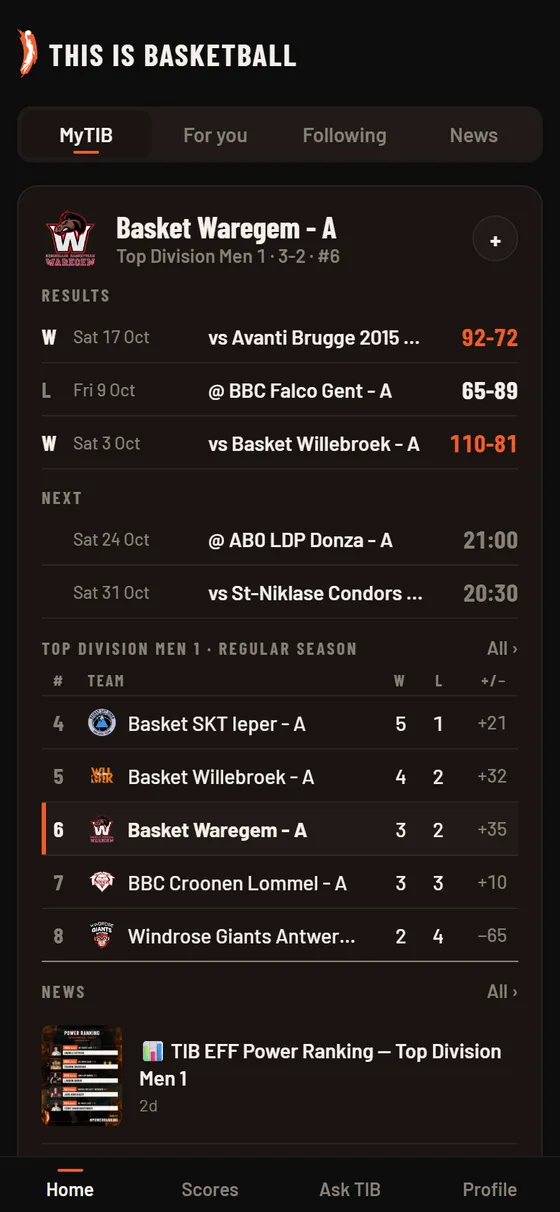
Put it in your own order
- Tap Edit order above your blocks.
- Move a block up or down with the arrows ↑ and ↓.
- Tap Done. Your order is saved with your account, so it is the same on every phone. Default order puts it back the way TIB arranges it, with each team next to its own league.
Fold a block
Tap the arrow › at the right of a block to fold it to one line: last result and next game for a team, your team’s place for a league, the last game for a player. Tap it again to unfold. Folded blocks are remembered on that phone.
Not following anything yet? MyTIB shows Find teams and players, which takes you to the search.
Following teams, leagues and players
- Find a team, league or player: search in the Ask TIB tab, or tap a name anywhere in the app (in a game, a table or a post).
- Tap + Follow. It turns into ✓ Following. In lists you see a small + that turns into ✓.
- Tap it again to unfollow.
Following adds a block to MyTIB, puts the games on top of Scores and sends you notifications (see below). Everything you follow is listed in Profile, and it is the same list as on the website.
Team, league and player pages
- Team: Games (next games and results), Roster, Standings and News. A live game shows on top.
- League: Standings, Games, Leaders (top scorers, rebounders and passers) and News. The teams you follow are highlighted in the table.
- Player: Season (averages per season, league and team), Games and News.
Every one of these pages has a bell next to the Follow button, for its notifications.
Before a game: the preview
Open a game that hasn’t started yet, from MyTIB, Scores or a team page, and you get a full preview. Parts without data are simply left out.
- A countdown to tip-off in your own time, with both teams’ record and place in the table. You can follow either team right there.
- The venue, with Apple Maps and Google Maps buttons for directions.
- Add to calendar: This game puts the game in your phone’s calendar; All … games subscribes to a team’s whole schedule, which keeps itself up to date.
- Form (the last five results), Standings (tap Show the full table for all of it) and the all-time Head-to-head.
- Season leaders and Players to watch for both teams. Tap a player to open his page.
- Head coaches: each coach’s record against this opponent, against the other coach, this season and over his career.
- From TIB (our posts about the game), How to watch (a link to the stream when there is one), Fan prediction and the Officials.
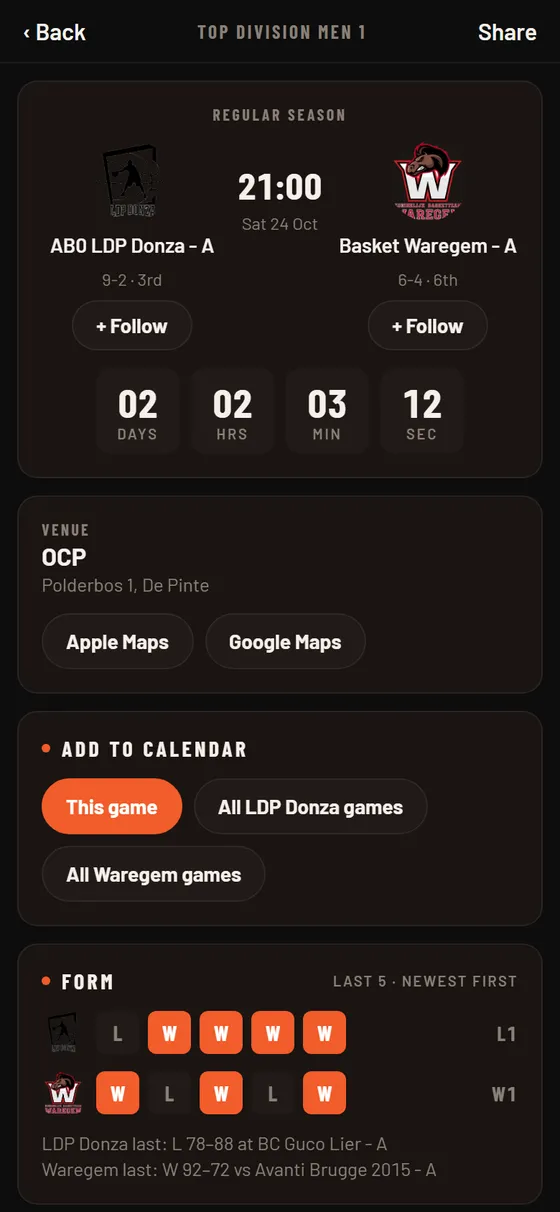
Once the game starts, the same screen shows the live score, the score per quarter and both teams’ box scores, and refreshes by itself. Share at the top sends the game to someone. Full game page, play-by-play and charts opens the game on the website.
The fan prediction only shows the picks in the app: to make your own pick, use the website.
Scores
The Scores tab shows every game of one day, grouped by competition. It opens on TODAY; tap another day in the strip at the top to go up to three days back or ahead. While a game is live the scores update by themselves, and you can always pull down to refresh.
- My games sits on top: that day’s games of the teams and leagues you follow.
- No game for your teams that day? Then Next up for your teams shows the next game of each team you follow.
- Tap a game to open it.
The feed: MyTIB, For you, Following, News
At the top of Home you switch between four tabs:
- MyTIB: your teams, leagues and players (see above).
- For you: posts from all of TIB, with the most interesting ones first.
- Following: only posts about what you follow.
- News: basketball news.
Under each post you can react, tap 💬 to comment, Share it, or tap Read more for the full story. Tap a team, league or player name on a post to open its page, or the + next to it to follow.
Signed out, or not following anything yet, Home opens on For you.
Reacting and commenting
Reactions
Tap 🖐️ High five under a post to give a high five. Hold it down to pick one of the other reactions. Tap again to take your reaction back.
Comments
- Tap 💬 under a post. The comments slide up from the bottom: drag the top edge up for the full screen, swipe down to close.
- Tap Add a comment…, type, and tap the orange arrow to post. Tap an emoji in the row above the keyboard to add it.
- Tap Reply under a comment to answer it. Your reply goes under that comment; View more replies opens the rest of the conversation.
- Tap the heart next to a comment to like it. Tap again to take it back.
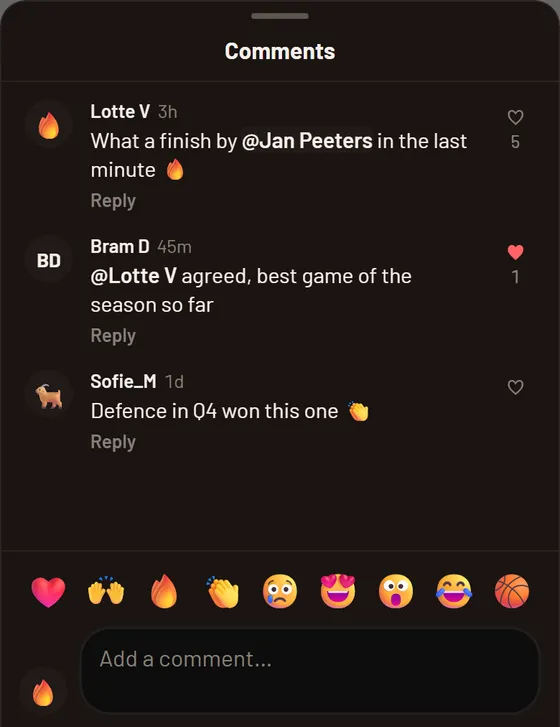
Delete or report a comment
Hold your finger on a comment. On your own comment you get Delete: confirm, and it is gone (replies to it stay, under “Comment deleted”). On someone else’s comment you get Report, and our moderators take a look.
To comment you need a display name: it is what others see next to your comment. Choose one in Profile. Links are not allowed in comments, and a comment that breaks the community rules is not posted: the app tells you why.
Notifications
There is nothing to set up: following is enough. After your first follow, TIB asks if it may send you notifications. Tap Allow.
What you get by default:
- For a team you follow: a reminder about an hour before tip-off, the tip-off and the final score.
- For a league: one notification with all the results of the day.
- For a player: his big games (20+ points, a double-double or 20+ TIB EFF).
Fine-tune it with the bell
- Open a team, league or player and tap the bell next to the Follow button.
- Switch moments on or off. For a team you can add Every quarter, Close game or Lead changes. Recommended goes back to the default, Only the final score keeps just the result.
- Switch Notify me about… off to get nothing from it, while you keep following it.
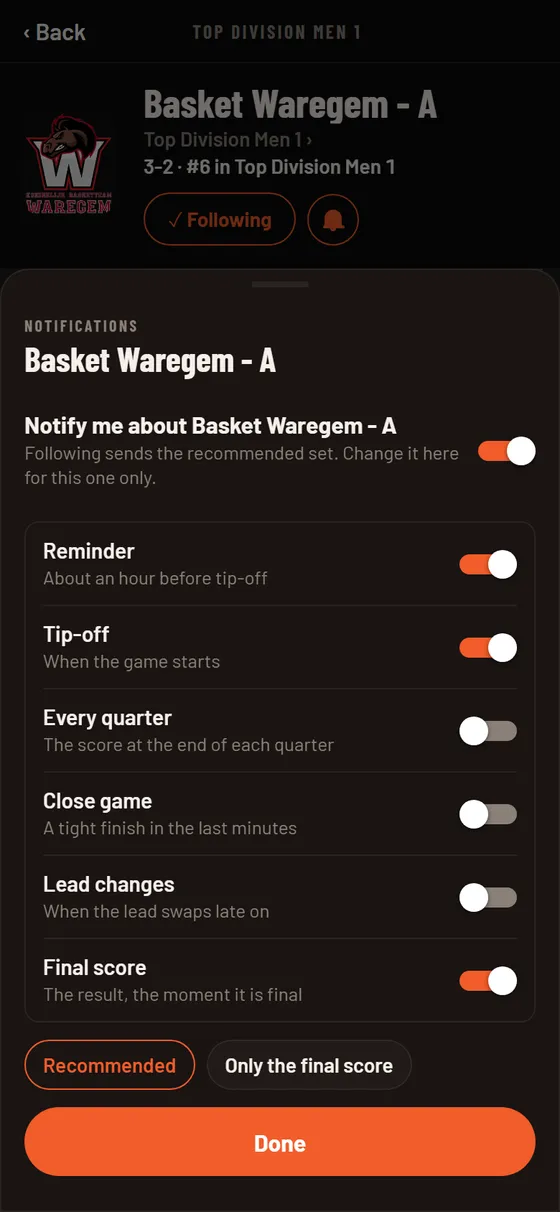
Interested in one game but not in its teams? Tap the bell on that game to get notifications for that game only.
Pause, quiet hours and people
In Profile → Notifications you can Pause all notifications (for 1 hour, until tomorrow 08:00, or until you switch it back on) and set Quiet hours: nothing between two times you choose, 22:30 to 07:00 to start with. Under People you choose whether you hear about reactions, replies, mentions, new followers and messages.
No notifications at all? Check that notifications for TIB are allowed in your iPhone settings; the app shows Open settings when they are off. A kind of game alert you switched off under Settings on the website stays off in the app too.
Ask TIB
Ask TIB is one box for two things: finding someone, and asking a stats question.
- Type a name to find players, teams and leagues. Tap a result to open it, or the + to follow it.
- Ask a question in plain words, such as “Who leads BNXT in assists?” or “Top scorers in Top Division Men 1”. You get a short answer with a ranking; tap a player to open him.
Not sure what to ask? Tap one of the examples under the box. The answer is written by TIB AI, and every number in it comes from TIB’s own box scores. Ask TIB also works when you are not signed in.
Your profile and account
The Profile tab shows your display name and e-mail address, everything you follow, and your notification settings.
- Display name: no name yet? Choose one here (3 to 20 characters). To change it later, use Settings on the website; a name can change once every 14 days.
- Privacy policy and Sign out.
- Delete account deletes your TIB account for good, with your follows, reactions and comments. This cannot be undone, and your account on the website is gone too.
Which version do I have?
At the very bottom of Profile is a line such as Version 0.2.2 · update 26 Oct 14:05. The date tells you which update you have; “built-in” means you are still on the version you installed.
Updates arrive by themselves. Close TIB completely and open it again, and the newest update is used. If the date hasn’t changed, close and open it once more. A bigger new version comes through TestFlight, which lets you know: tap Update there.
Privacy
The apps use the same account and the same privacy policy as this website. What you follow, your reactions and your comments are kept with your account. If you allow notifications, your phone gets an address so we can send them; switch notifications off or delete your account and we stop. You can delete your account in the app at any time. Read the full privacy policy.
TIB Club: for club staff
TIB Club: getting started
TIB Club is the app for the people who run a club: the board, team managers, coaches. It is being tested with a pilot club first; other clubs follow.
- Sign in with your TIB account: type your e-mail address, tap Send code and type the code from the e-mail. You can also sign in with a password.
- Not linked to a club yet? Ask your club for an invite code. On the Clubs tab tap Join with a code, type the eight characters and tap Join. An invite link from your club opens this screen for you.
- The Agenda tab now shows your games and trainings.
One account for all your clubs. Coach at one club and parent at another? Join both with the same account. The agenda shows everything together, and the Clubs tab lists each club with your role there: no switching back and forth.
TIB Club follows the language of your phone: Dutch, French or English.
Your agenda
The Agenda tab is one list of games, trainings and club activities, day by day. It opens on today.
- My schedule: the teams you coach, play in or are a parent in, the games you officiate, and the club activities for you. When two things are too close together you see a warning: they overlap, or there is little time to get to the next venue.
- Club staff also get filters such as Whole club, Favourites, Seniors and Youth, plus their own groups of teams.
- Games only hides trainings and activities.
- Tap Route for directions in Apple Maps or Google Maps. A played game shows its score; All details opens the game on the website.
- Tap a game or training to open it.
Favourite teams and your own groups
Tap Teams › at the end of the filter row. The star makes a team a favourite. Tick a few teams, give them a name (for example “Men” for the A, B and C team) and tap Save as group: it becomes a filter of its own. The app remembers the filter you used last.
Taking attendance
- Open a game or training from the agenda.
- Everyone counts as present, unless your club chose otherwise or a player said himself he can’t come. Tap a name to change it.
- Choose Present or one of your club’s reasons (late, injured, ill, …). Some reasons ask for a comment first.
No signal in the hall? No problem. Every tap is kept on your phone and sent as soon as you have signal again. The screen shows how many changes are still waiting.
The same screen shows the venue (tap it for directions) and, for a game, who officiates.
Club activities
A mussel feast, a camp, the general meeting: club activities show in the agenda of everyone they are for, and those people get a notification when an activity is created, moved or cancelled.
- On the Clubs tab, tap New activity under your club.
- Fill in the title, the date, start and end time, the venue and a description.
- Choose who it is for: the Whole club or a few teams. Switch on Ask who is coming if you want answers.
- Tap Save.
Members open the activity from their agenda and answer Going, Maybe or Not going. Organisers see how many are coming, and can Edit it or Cancel activity. Activities are created by the board, admins and moderators, and by a group that has that right.
Members, invites and groups
On the Clubs tab, under your club, Members and invites lists everyone in the club with their role. From there you change someone’s role or remove them from the club.
- Tap Invite and choose the role: player, parent, member, coach or team manager.
- For a parent, pick the team and the child: the parent then sees that child’s schedule from the start.
- Choose One person, or Several for a code you can post in the team’s WhatsApp group, and tap Make code.
- Tap Share to send the code. It is valid for 30 days.
Players under 18 get no account of their own: invite a parent instead.
Who invites whom: moderators invite players, parents and members; admins also coaches and team managers; the board also admins and moderators.
Groups
A group gives people extra rights in your club, for example the events team or the club referees. Tap Groups, then New group, give it a name, switch on its rights (such as managing activities, changing the training schedule or assigning officials) and add the people.
The training schedule
The board, admins and moderators of a club change the trainings of every team in a week calendar: Clubs tab → Training schedule.
- Move a training: hold it and drag it. It snaps to 15 minutes. Within the same day you choose Only this week or Every week; on another day the change is for every week.
- Change a training: tap it. Change the times for every week, Cancel this week (with a comment such as “hall not available”) or Stop this training for good.
- Add a training: tap an empty spot in the calendar.
When a training changes for one week, the players of that team get a notification.
Officials on a game
Open a game in the agenda to see who officiates it: referee, scorer, timekeeper, shot clock and other table officials. The board, or a group with that right, assigns club and youth officials: tap Assign official, choose the duty and someone from the club, or type another name. The person assigned gets a notification and sees the game in their agenda with their duty.
Still stuck, or does something work differently from what you read here? Tell us on the Roadmap.